Multi-Quizzes
Overview
This guide explains how to create and manage your own multi-quizzes.
Steps
To create a multi-quiz:
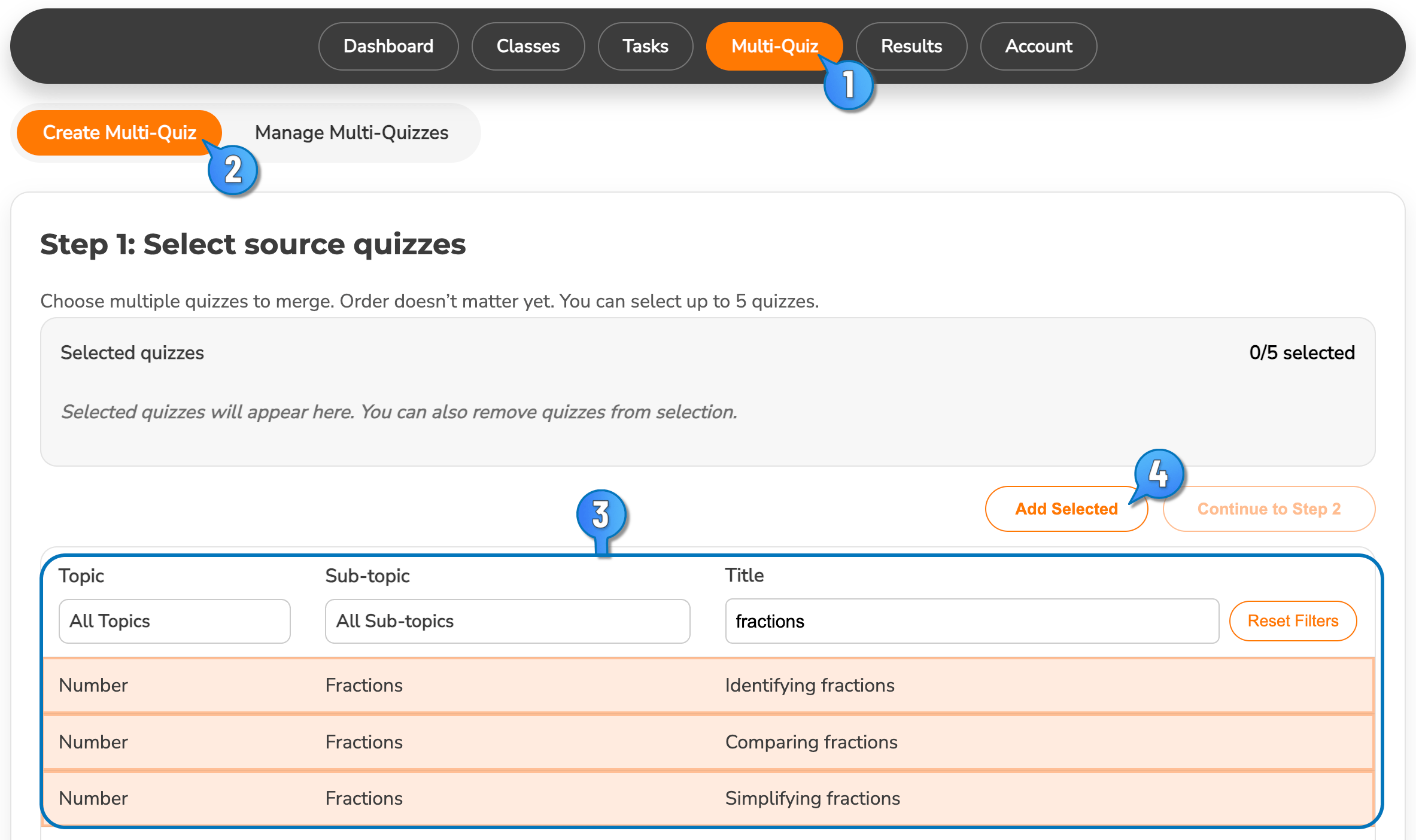
- Select Multi-quiz in the Teacher Dashboard
- Select Create Multi-quiz
- Use filters and search to select quizzes
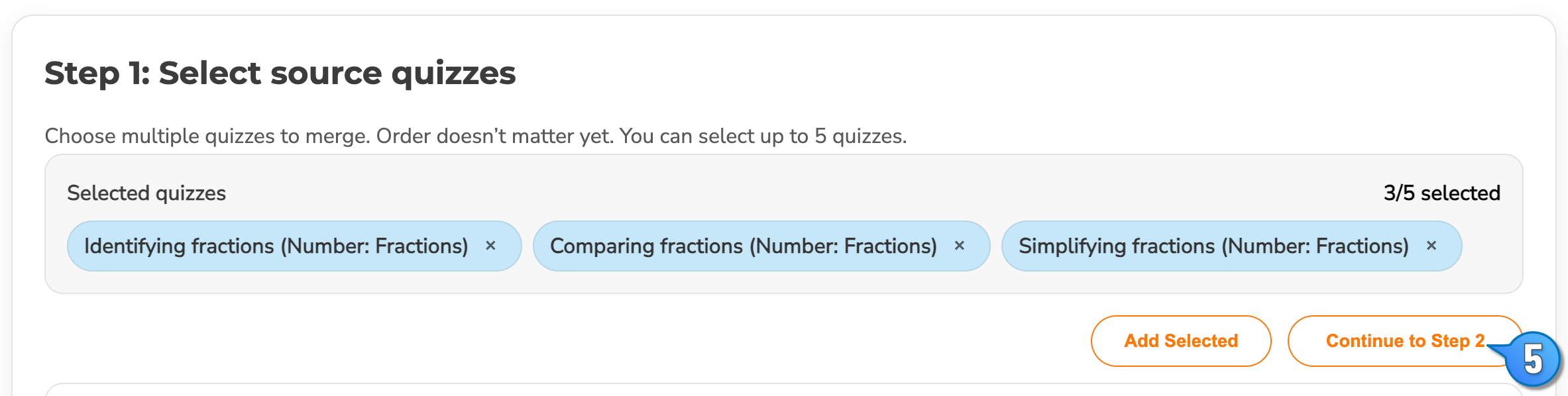
- Click Add to add selected quizzes. You can repeat steps 3 & 4. You can also remove a quiz from the selected set by clicking the cross on the quiz title.
- Once you have the quizzes selected and added, click Continue to Step 2
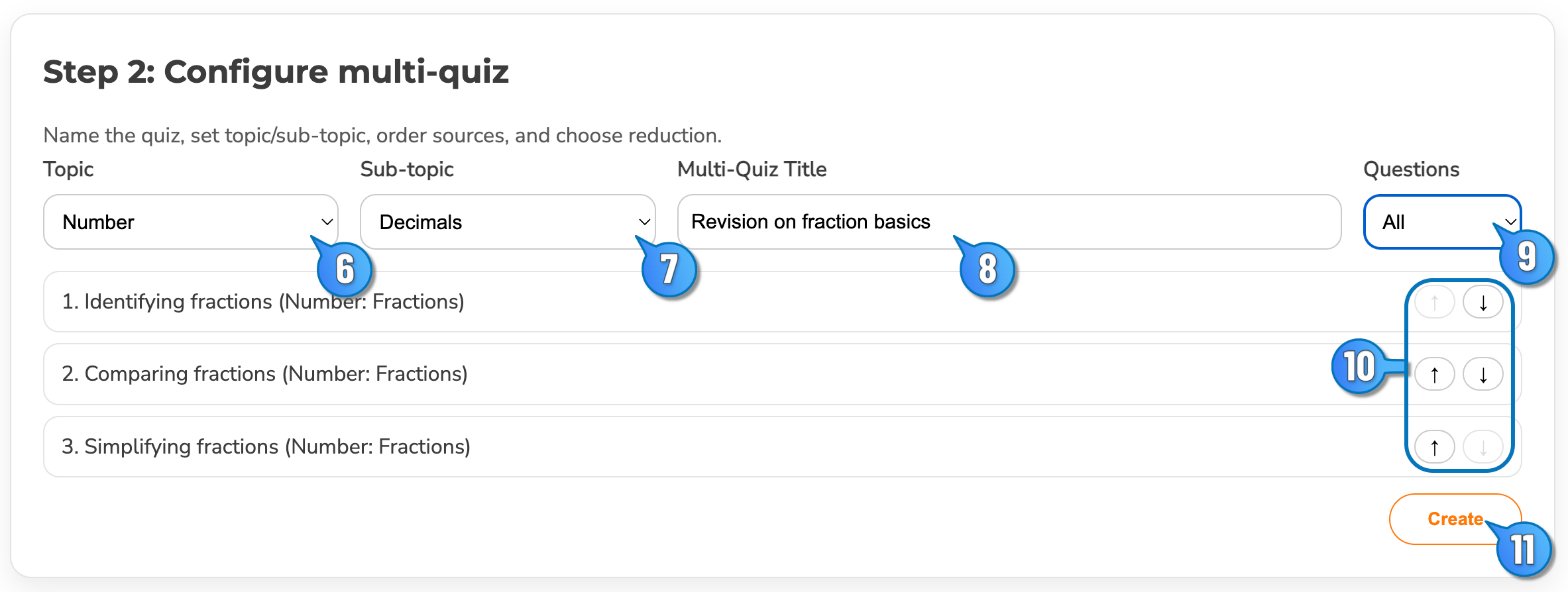
- You can assign your quiz into an existing topic or select "Custom"
- You can assign your quiz into an existing sub-topic or select "Custom"
- Provide your own title for your quiz.
- You can assign all questions, or reduce to "odds-only" or "evens-only"
- Adjust the order of the quizzes as necessary
- Select Create to finish. You can then create a new task for a class using your Multi-quiz.