Multi-Quizzes
Steps
To combine multiple quizzes into a multi-quiz:
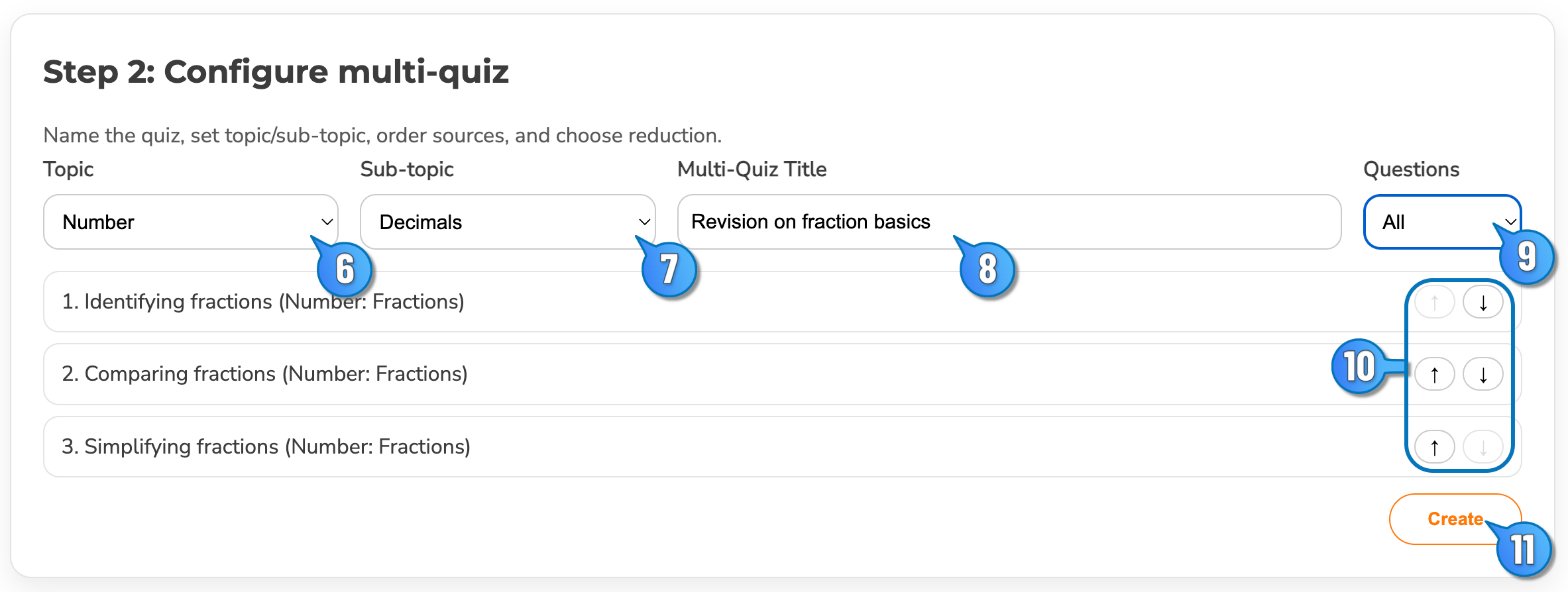
- Select Multi-quiz in the Teacher Dashboard
- Select Create Multi-quiz
- Use filters and search to select quizzes
- Click Add to add selected quizzes. You can repeat steps 3 & 4. You can also remove a quiz from the selected set by clicking the cross on the quiz title.
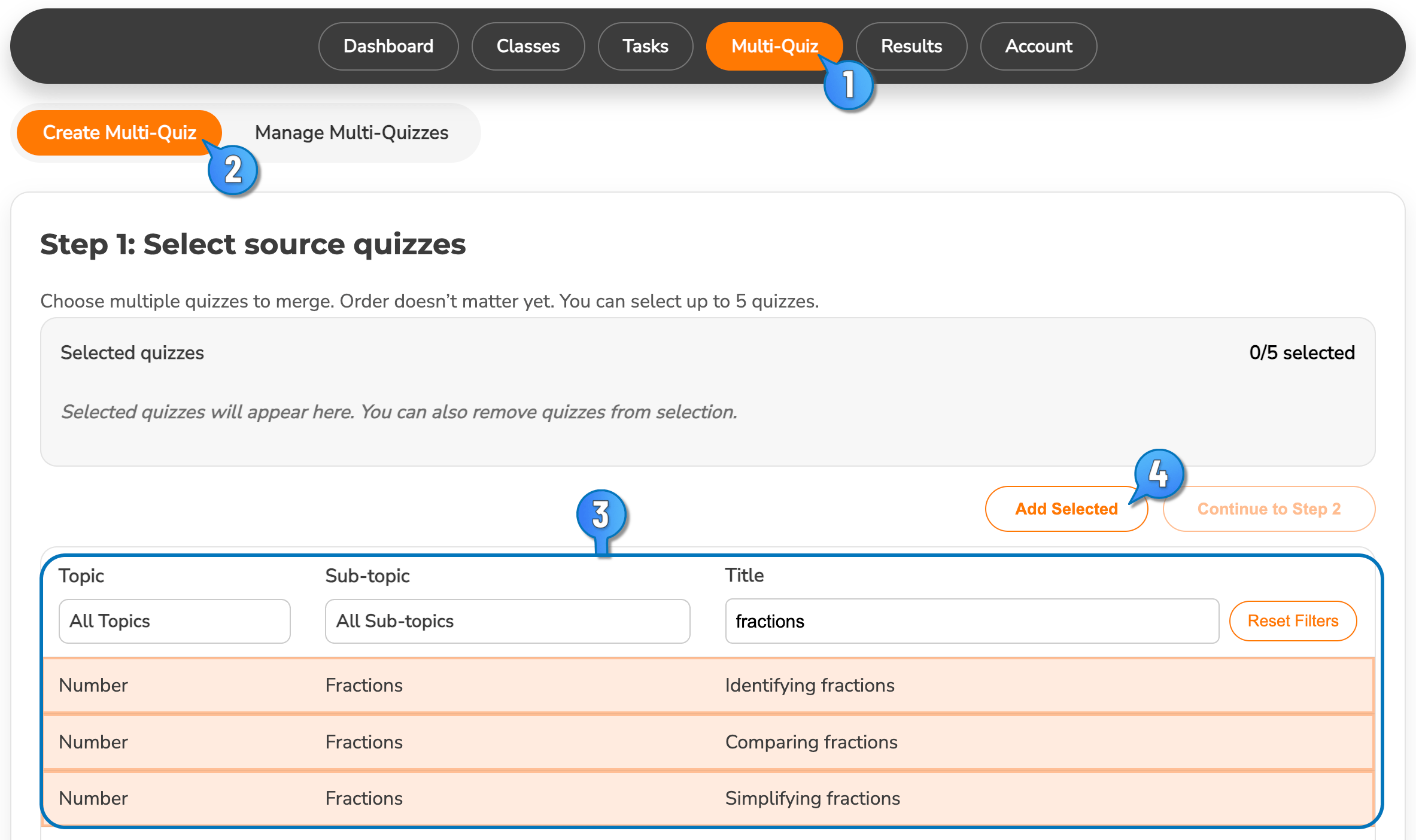
- Once you have the quizzes selected and added, click Continue to Step 2
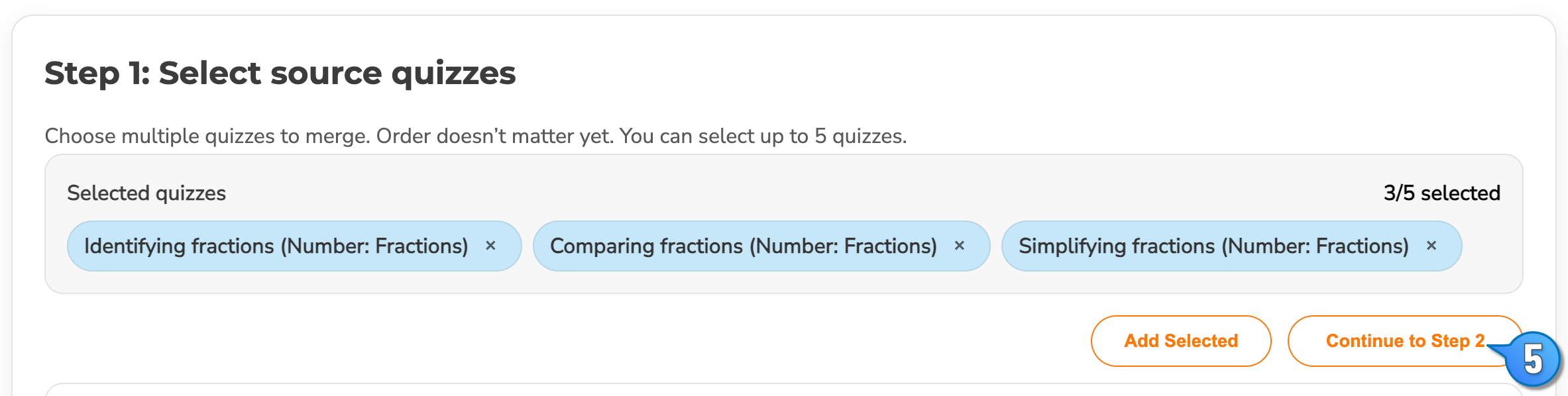
- You can assign your quiz into an existing topic or select "Custom"
- You can assign your quiz into an existing sub-topic or select "Custom"
- Provide your own title for your quiz.
- You can use all questions, select odds-only or evens-only, or create a quiz with exactly 10, 20, 30, or 40 questions. Multi-quizzes are limited to 40 questions.
- Adjust the order of the quizzes as necessary
- Select Create to finish. You can then create a new task for a class using your Multi-quiz.