Monitor progress
Overview
This guide explains how to generate a class overview across many tasks and export results for your records.
Steps
To generate a class overview:
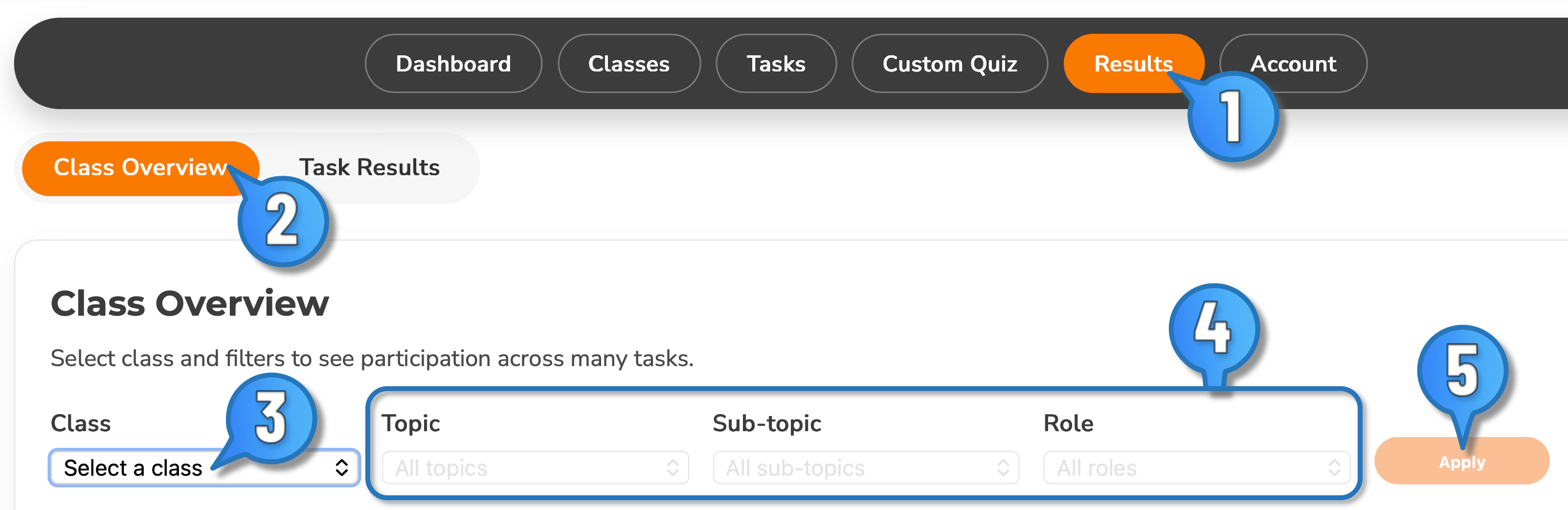
- Select Results in the Teacher Dashboard
- Select Class Overview
- From the select-box, choose the class of interest.
- Use filters to control which quizzes are included in the overview
- Once done, hit Apply to generate the Overview
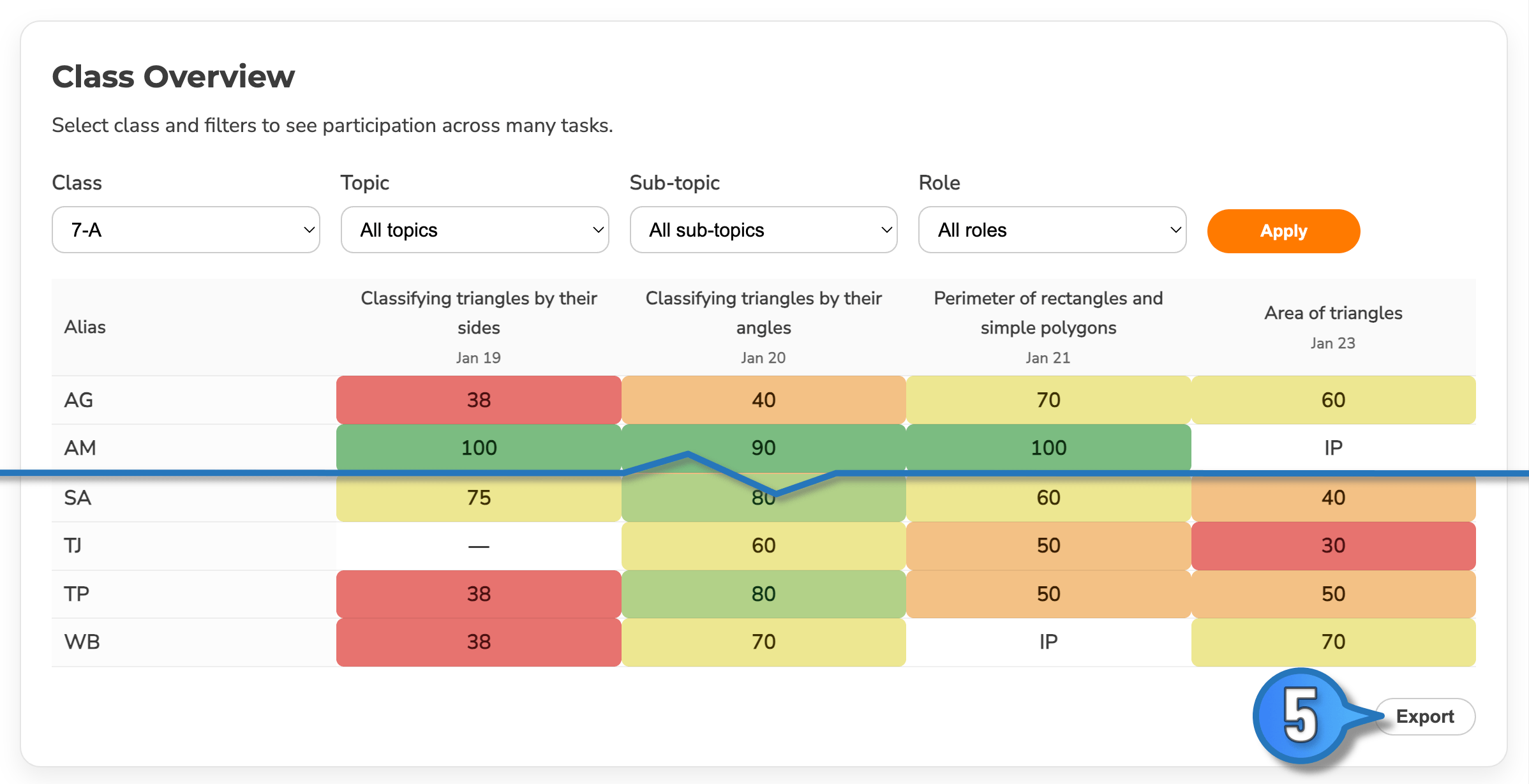
The overview table will then display results for each alias (in rows) and task (column) that matches your filter selection. The table shows percentage score for each quiz and colour-coded for quick visual interpretation. The order of quizzes in columns is determined by the quiz close date.
For large tables, you may need to scroll to see all contents. Entries with "--" indicate the student has not yet made a start, while "IP" indicates "in-progress". This means the student has successfully logged in via the lobby but has not yet completed the quiz.
You can Export (Step 5) the results as a comma separated value (csv) file for your records, which is easily read by MS Excel, Google Sheets or Aople Numbers.