Add a Class

- Navigate to Classes > Add a Class
- Enter the class name and size. You can add/remove students at any time.
- click Add to save. You will then be automatically moved on to set student aliases.
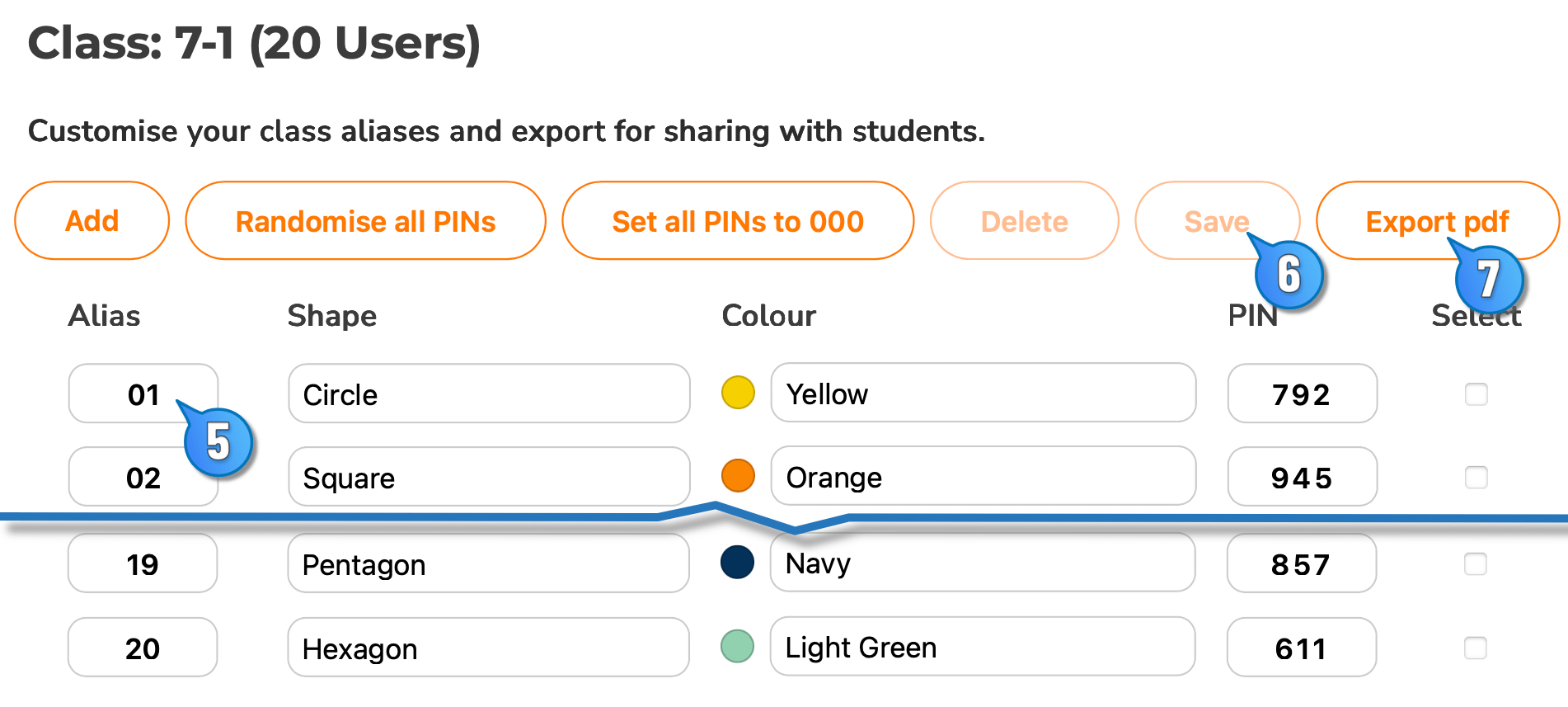
- Click into each Alias box and customise to represent your class (max 3 characters).
- Once you have set your aliases, be sure to Save.
- You can then Export pdf to print login details for your students.
Manage Classes
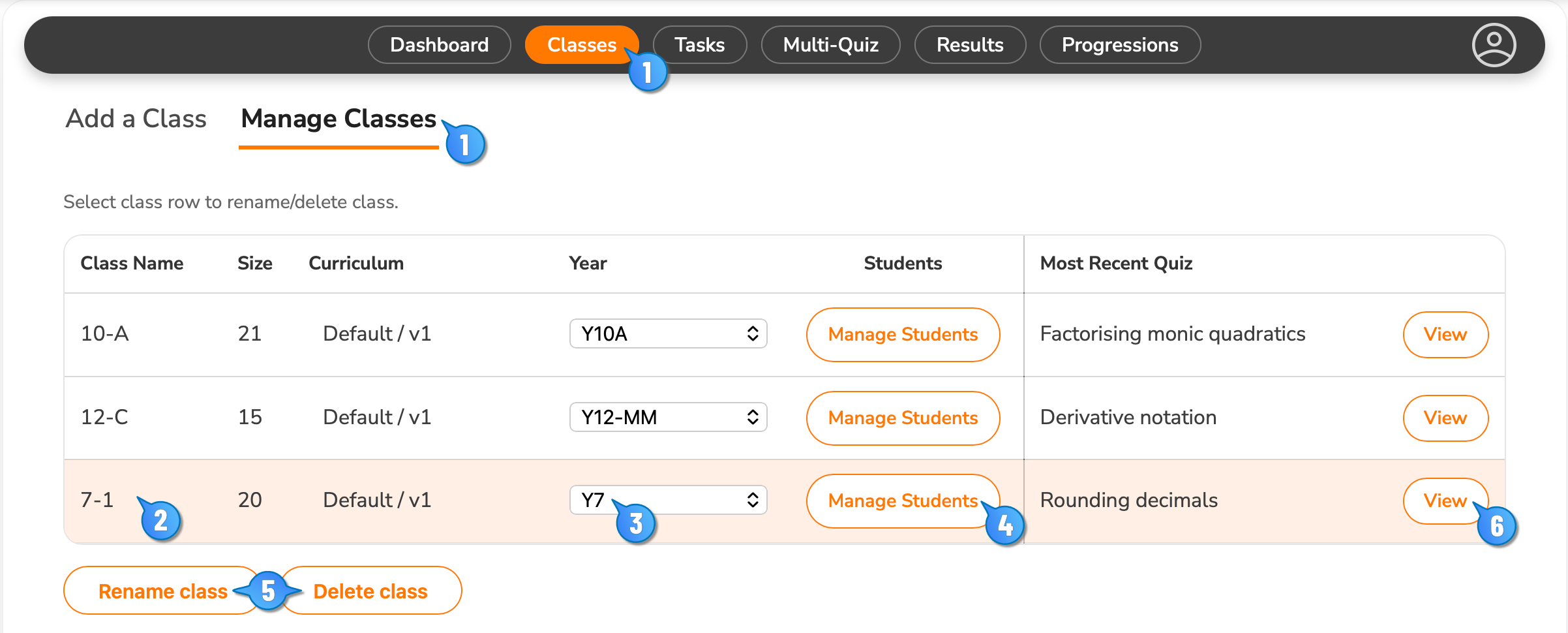
- Navigate to Classes > Manage Classes
- Select the class to update by clicking the row in the table.
- Manage Students to add, remove students, change PINs, etc.
- Optionally set Year level in Curriculum
- Rename or Delete the selected class, if needed (action requires confirmation).
- View results of the most recently-assigned quiz