
Take a quiz
Overview
This guide explains how you can distribute a task to your class, how they access the quiz, and how to configure the lobby.
Steps
Once you create a task, you can copy the link and/or code to share with your class. You can access this information from the View & Manage Tasks page at any time.
Distribute the quiz to your class by adding the link into your Learning Management System (LMS), shared OneNote document or any other means. Or, students visit mammath.study and enter the link into the Enter code box on the home page and hit Join.
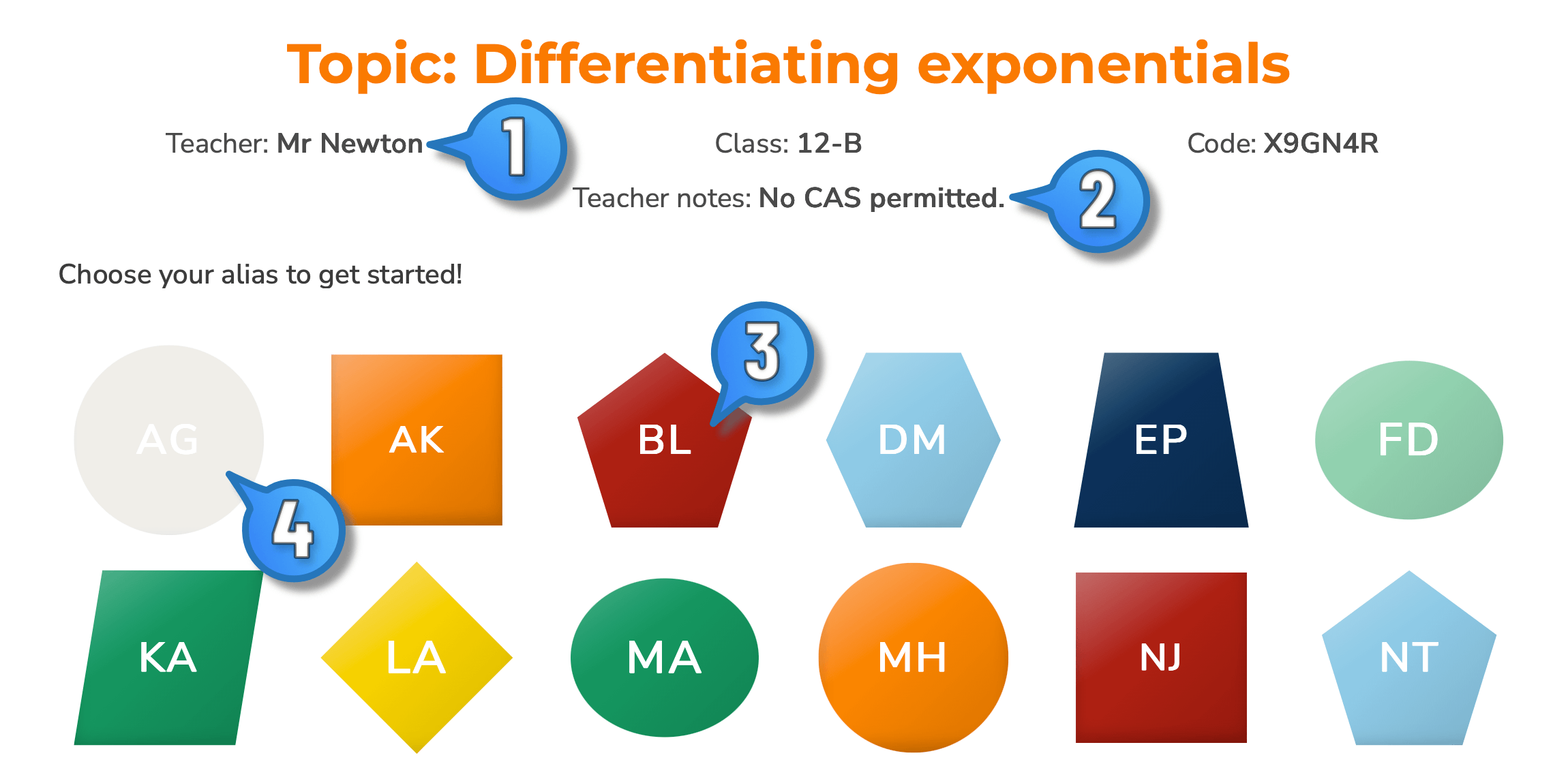
Once students start a quiz via a link or code, they will enter the quiz lobby. Students then select their alias (a unique shape, colour and label) and enter their 3-digit PIN when prompted. They will be able to immediately start the quiz. Choosing an answer automatically moves them to the next question and they can review their answers on completion.
The lobby is shown below. A few things to note:
- The displayed teacher name is controlled under the Teacher Accounts page
- The Teacher notes: are set when creating a task or can be edited on the View & Manage Tasks page at any time.
- A coloured alias indicates they are yet to complete the quiz.
- If a shape has been grayed out, it means that student has completed the quiz.
Notes
- Refresh the lobby for a visual status on quiz completion in your class.
- You can manually change the shape and colour of each alias within the Manage Users page under Classes.
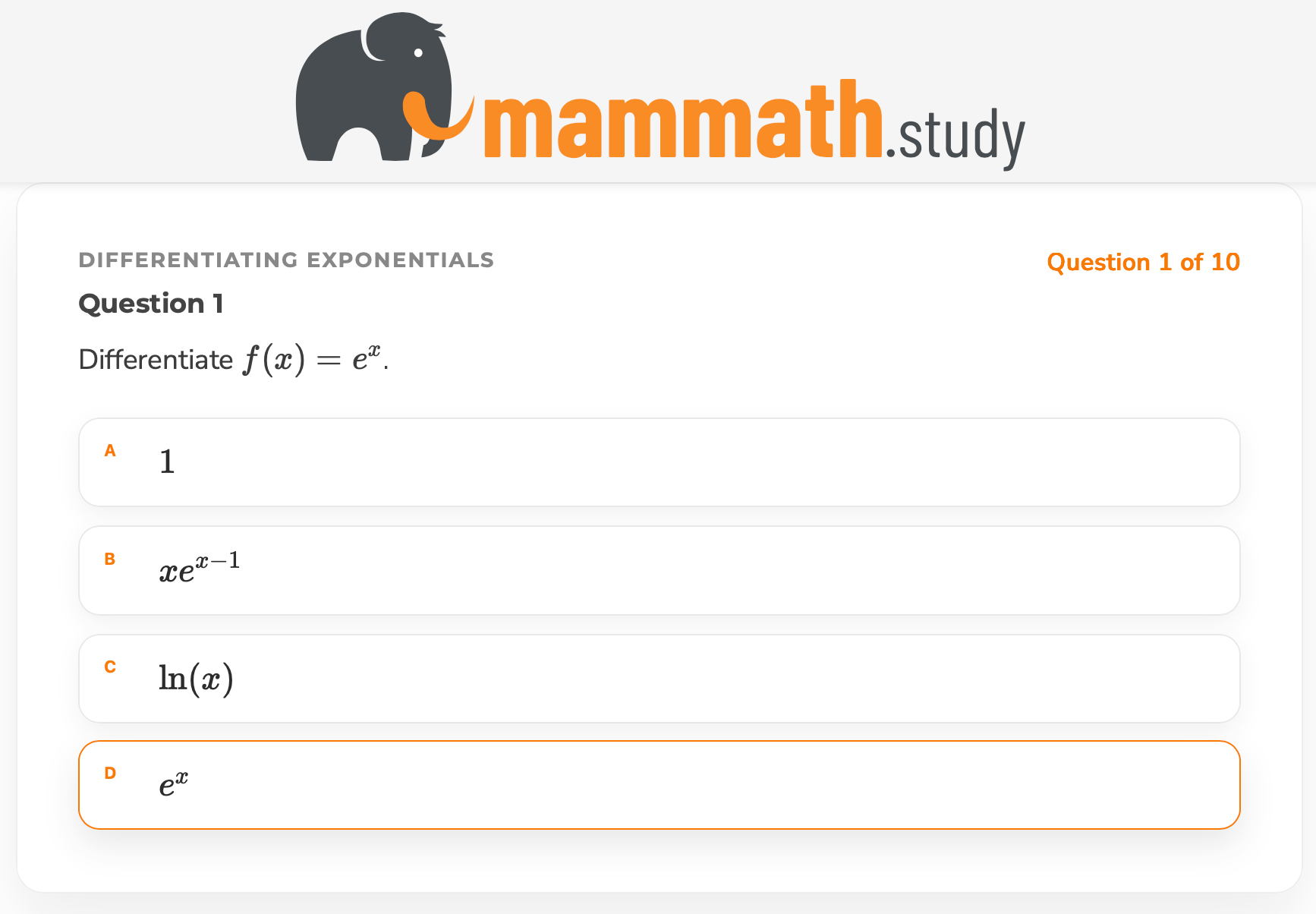
Each question typically has 4 options. The question number and number of questions is displayed to indicate progress.
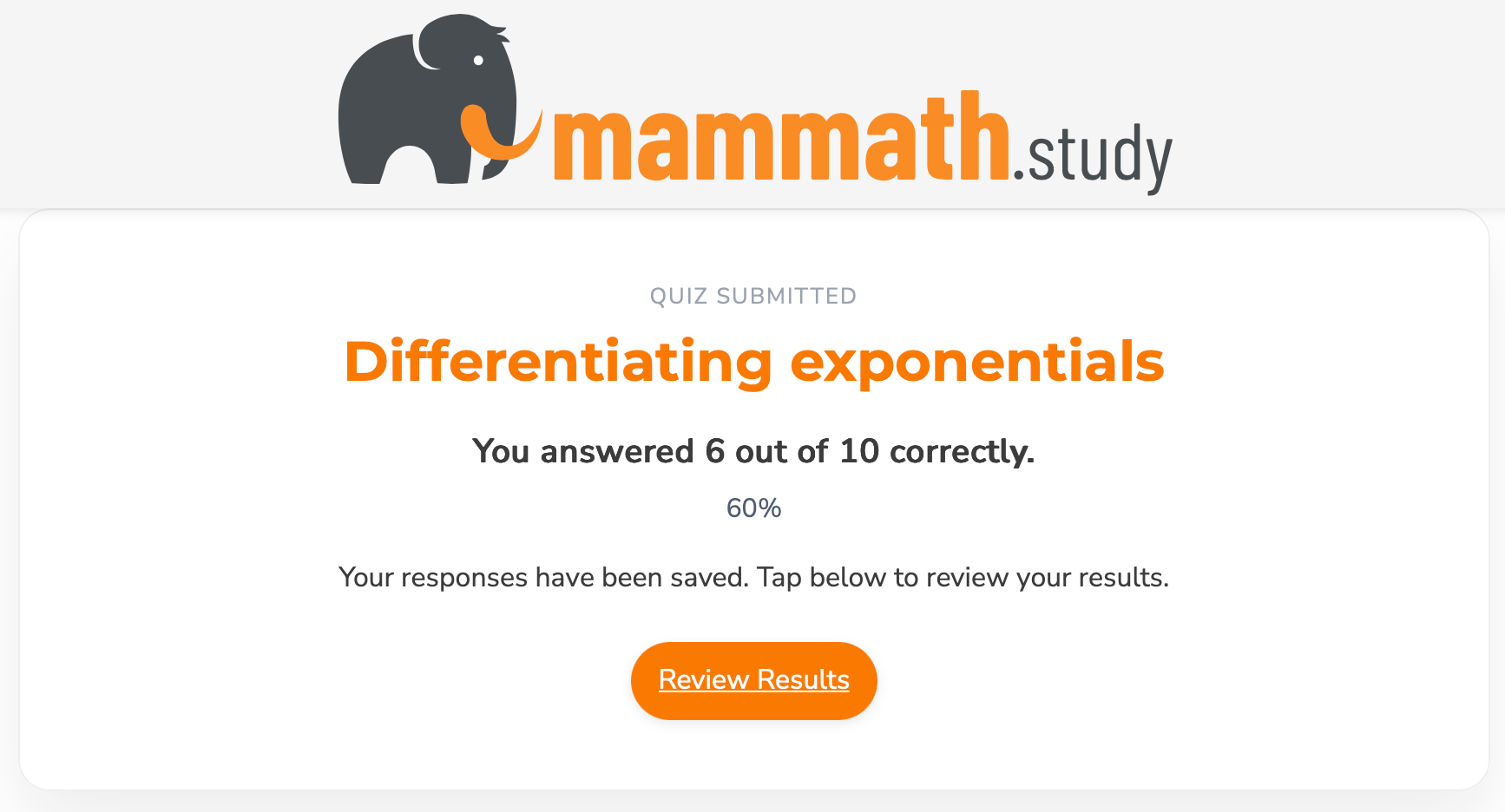
On completion, students learn how the went with a short summary and can initiate a review.
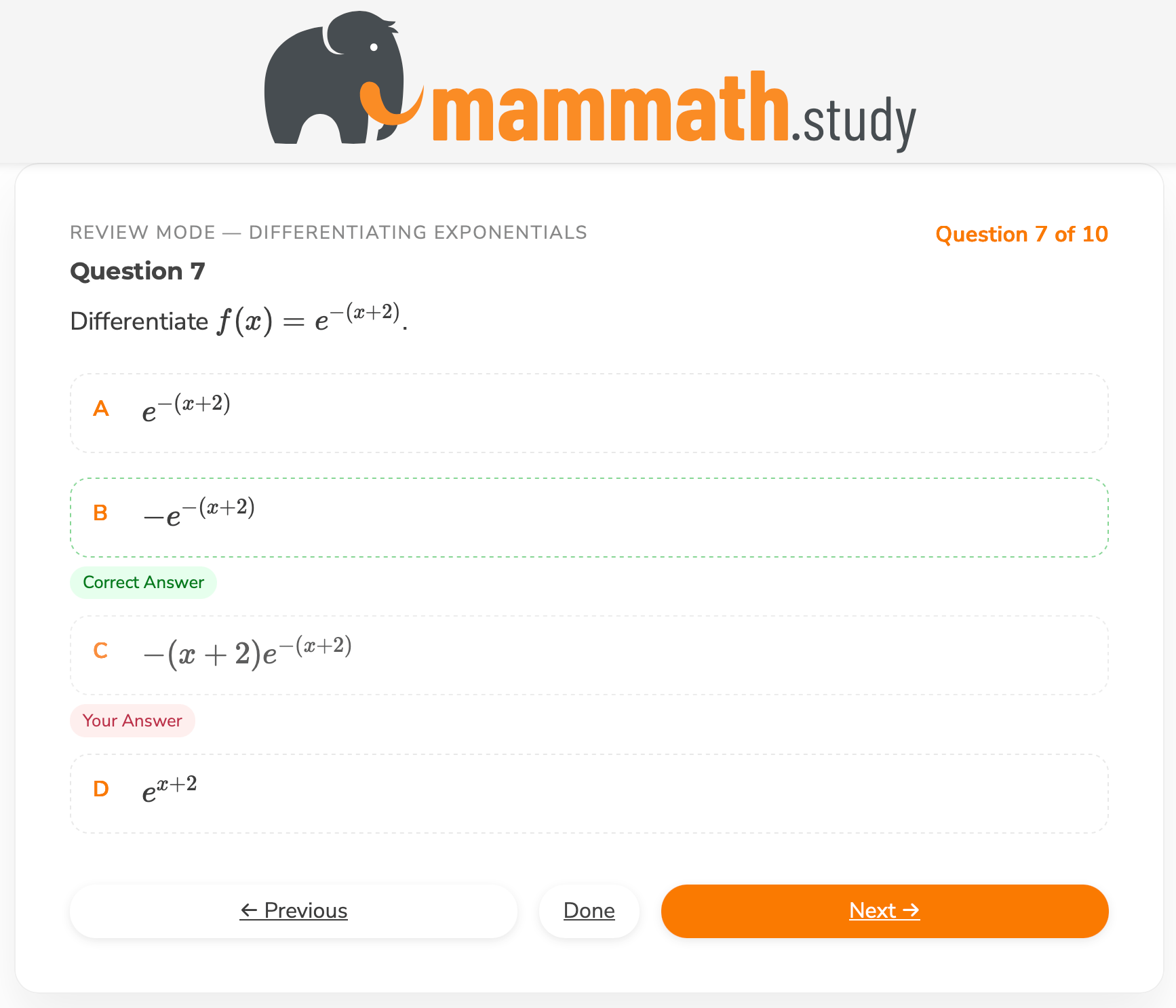
In review, each question is re-visited indicating whether their chosen answer was correct or not, and the correct answer (if they chose an incorrect one).