
Assign a quiz
Overview
This guide walks through the basic steps for assigning a quiz to a class in the Teacher Dashboard. In Mammath, you assign a quiz to a class by creating a Task. A Task represents an assignment of a quiz to a class with additional data, such as open and close dates. Each Task has a unique access code or link.
Steps
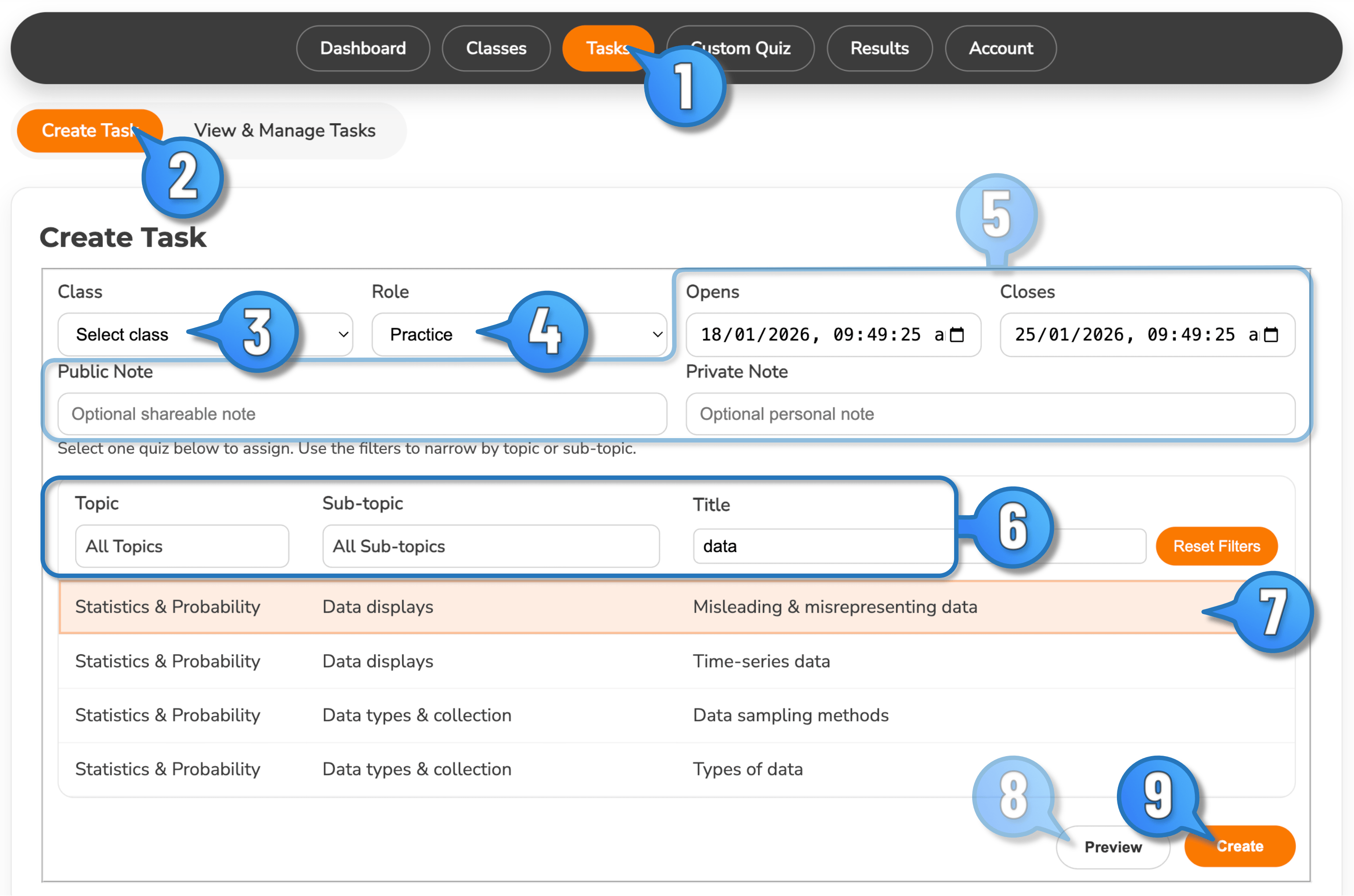
- On the Teacher Dashboard, select Tasks.
- Select Create Task.
- Select the class that will be assigned a quiz.
- Assign a Role to the task. Roles do not change how a quiz is conducted. They just provide a way to sort or manage quizzes.
- Optional: Set the open and close dates for the quiz. By default, the quiz open date is the present date & time, and close date is set 7 days later. Optional Public Note is displayed in the quiz lobby to your class. A Private Note is for your own records.
- Use the Topic and Sub-topic filter and selection boxes to filter quizzes. Or, just start typing in the search box under Title.
- Select the desired quiz from the table.
- Optional: select Preview to check that the scope aligns with your expectations. Quiz Preview does not show images or the answer options.
- Select Create to assign the quiz.
When done, a pop-up dialogue box will show where you can copy either the link or code for the new quiz. You can also access this information from the View & Manage Tasks page at any time.
Notes
- You can assign the same quiz more than once to a class, however will receive a warning when you do so.
- A task can only have an open window (Close date - Open date) of 7 days. However you can change both the open and close dates at any time from the View & Manage Tasks page. The seven-day open window limit remains for the new open/close dates.